Guide · 5 min read
Set up approvals your team will actually use
Three decisions and ten minutes, and nothing goes out without the right yes.
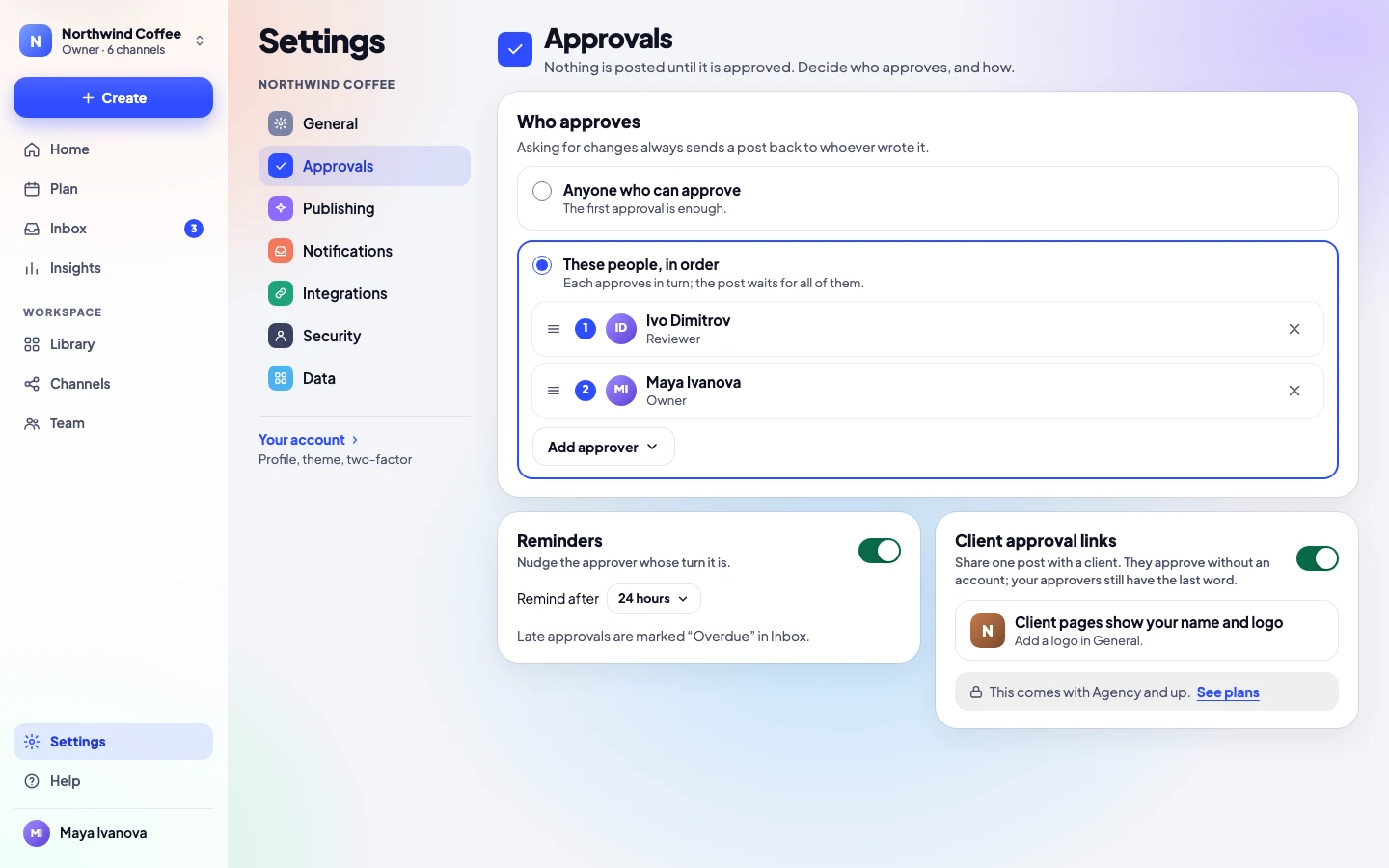
Every post in Release Social needs a yes before it can go out. On Solo you give it yourself. On Team and up you choose who gives it, whether they are reminded, and whether clients can say yes too. All three are in Settings → Approvals, and each change is saved at once.
1. Decide who says yes
Under Who approves there are two choices:
- Anyone who can approve. The first approval is enough. Good for a small team that trusts each other’s eye.
- These people, in order. Each approves in turn, and the post waits for all of them. Good when a writer, an editor and a manager each have a say.
Drag the approvers into the order you want, or use the arrow keys on the handle. Only people who can approve can be added: if someone is missing, give them that role on Team first. Asking for changes always sends a post back to whoever wrote it.
2. Decide when to nudge
Turn on Reminders and pick how long a post may wait: 4, 8, 12, 24, 48 or 72 hours. Release Social then nudges the approver whose turn it is, so nobody has to chase anyone. A late approval is marked Overdue in the Inbox.
3. Decide whether clients approve
With Client approval links on, you can share one post with a client from the post itself. They see it exactly as it will look and approve or ask for changes, without an account. Your approvers still have the last word. Turn the links off and the ones already sent stop opening.
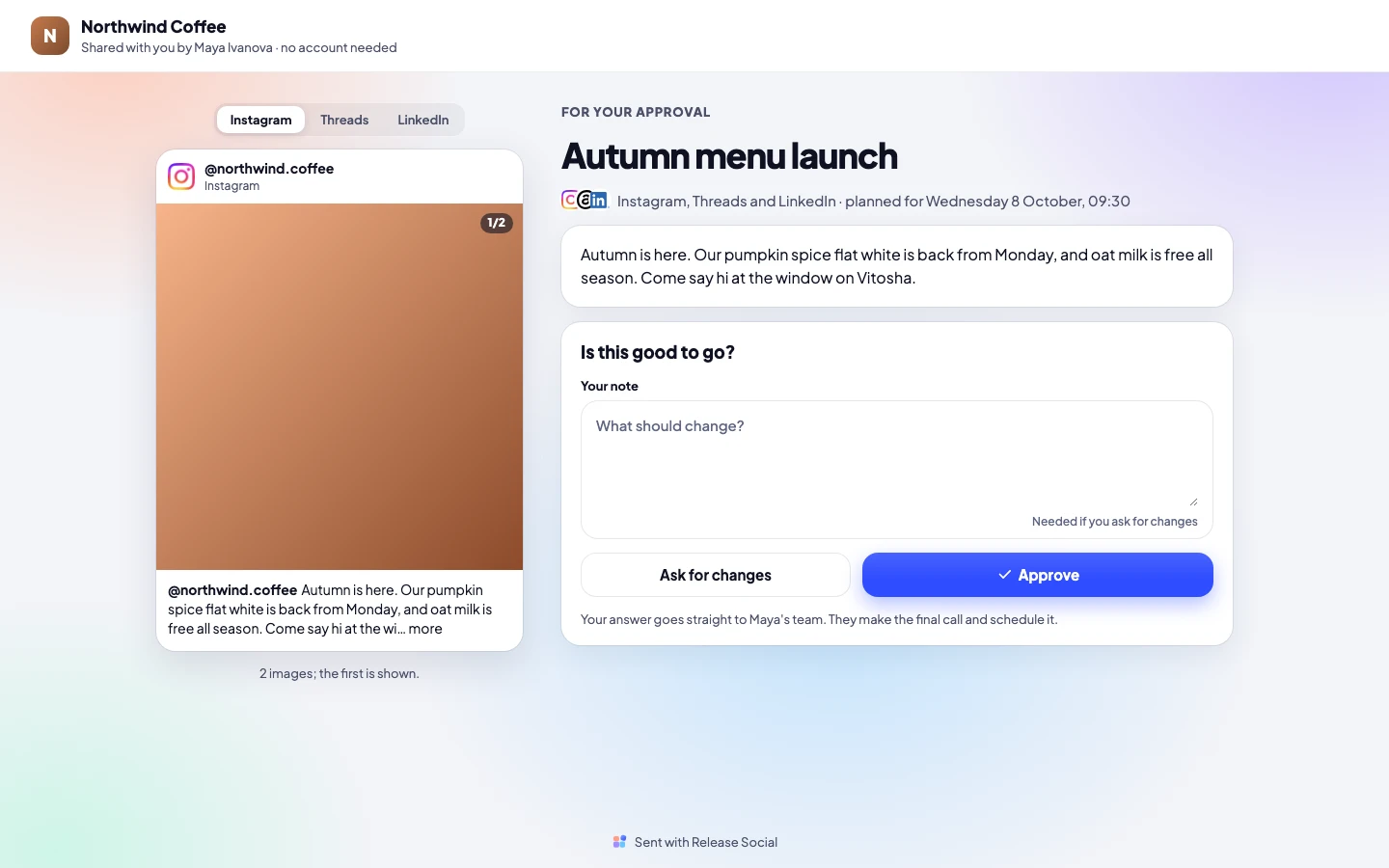
On Agency and up, client pages show your client’s name and logo; add the logo in Settings → General.
What approvers see
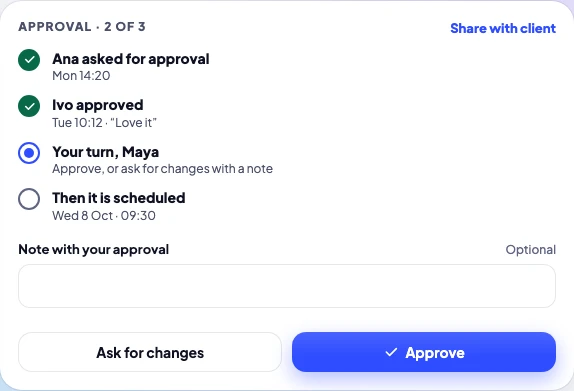
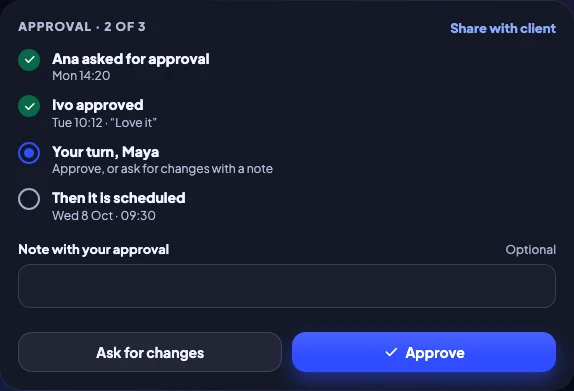
When it is their turn, approvers find the post in Inbox → Approvals, and on the post itself, with its real preview on each channel and who has said yes so far. One tap approves; Ask for changes needs a short note, so the writer knows what to fix.
Checklist
- Who approves: anyone who can, or these people in order
- Everyone on the list has a role that can approve
- Reminders on, after a wait that suits your week
- Client approval links on or off, as you work
- A logo in Settings → General for your client pages (Agency)
- One test post sent for approval, to see it work
Try it with your own team
Approvals with named approvers in order come with Team, free for 14 days.